
Recently, I was working on some connectivity issues between the HCL Traveler service and HCL Verse Mobile on Android. I needed to look into the client logs during the initial setup stage, ideally with “debugging” mode enabled.
While I easily found the documentation for the iOS client (KB0094654), I couldn’t find equivalent instructions for Android. Fortunately, because colleagues from the Traveler team were involved, they shared the exact steps to activate debug logging at the setup stage.
I decided to share this quick guide here, as it is incredibly useful for troubleshooting.
- Open the HCL Verse mobile application and tap the overflow menu (the three dots).
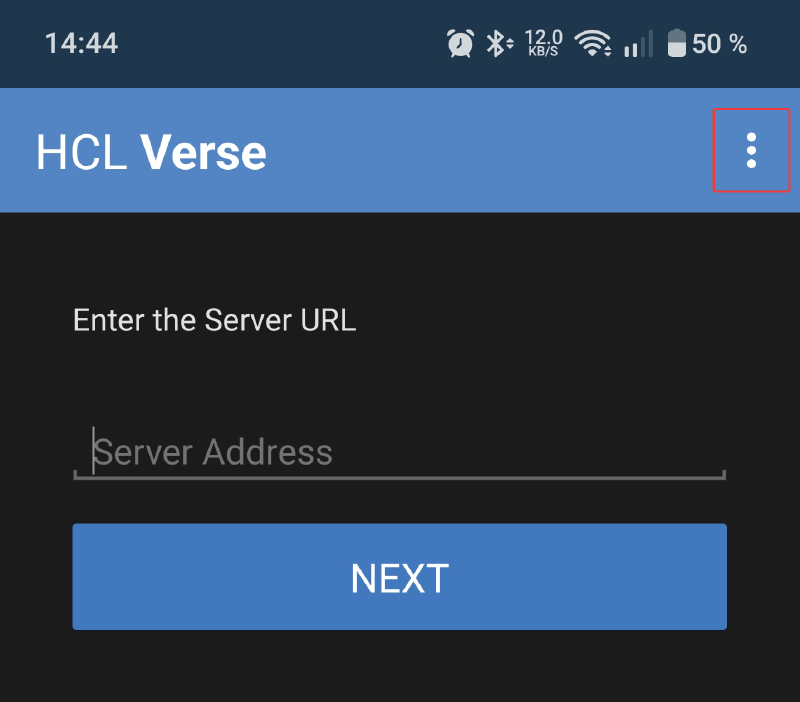
- Select
About.
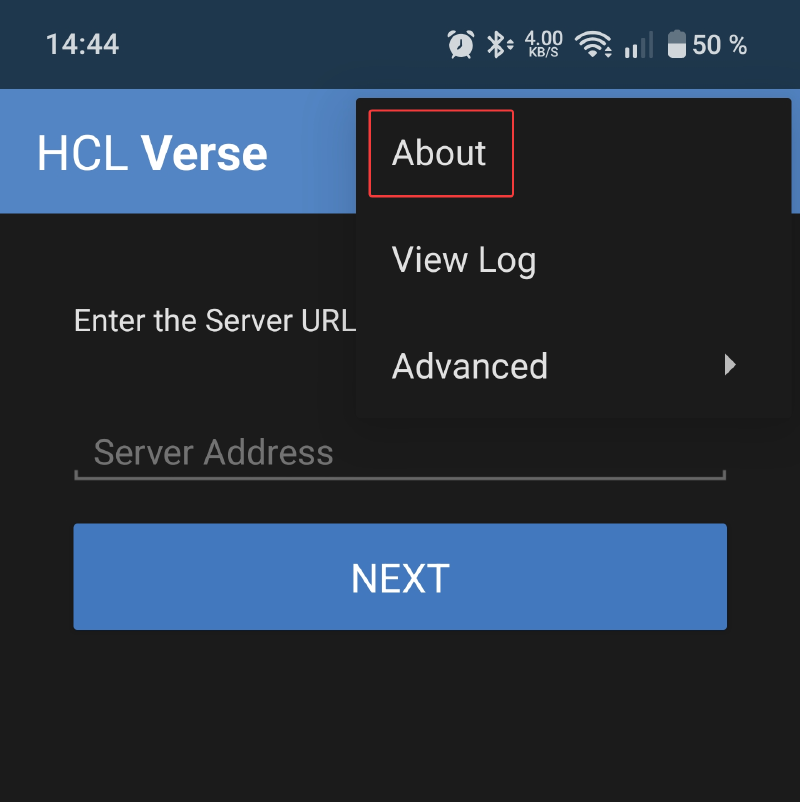
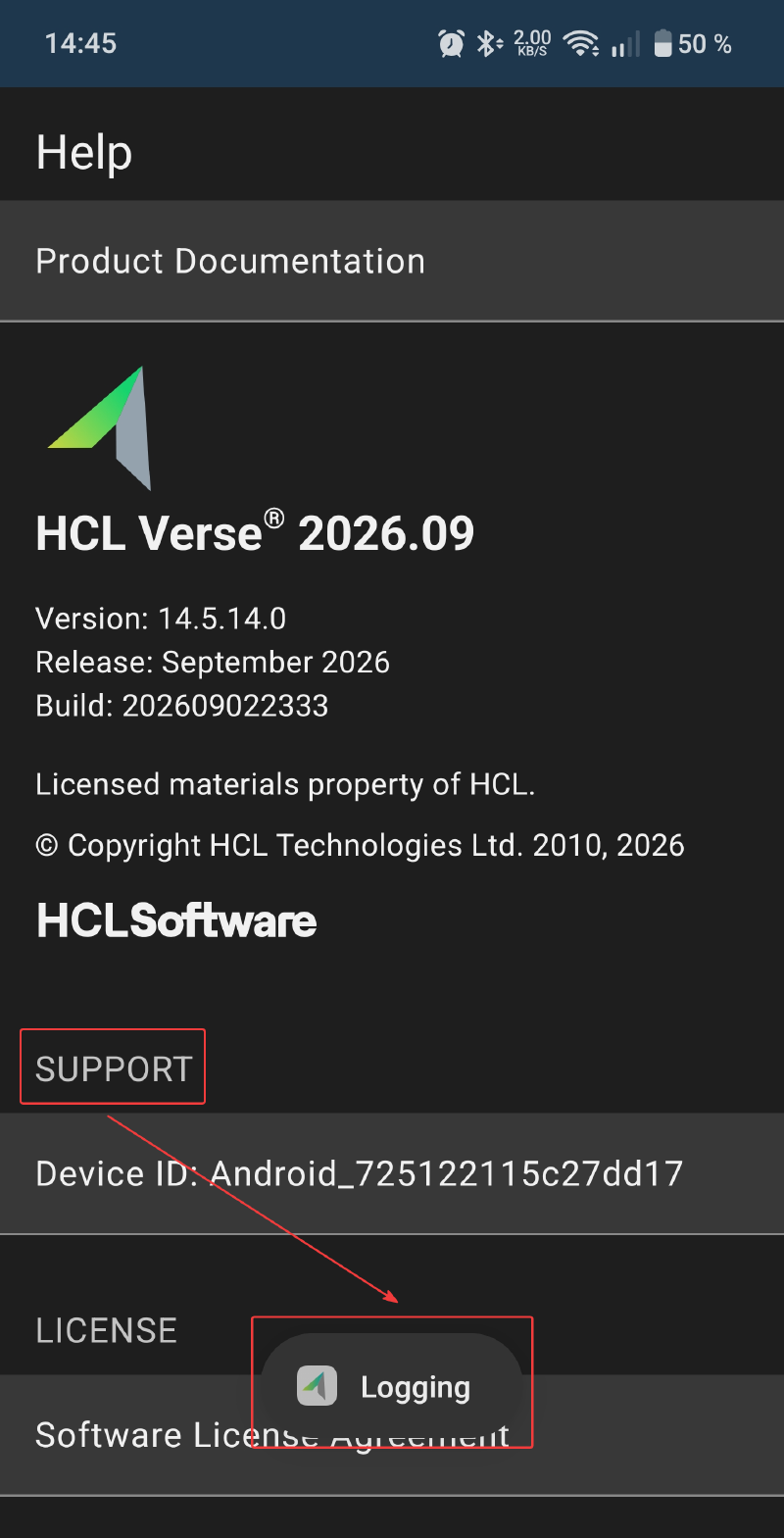
- Once the “About” page loads, tap the word
SUPPORTfive times in quick succession.
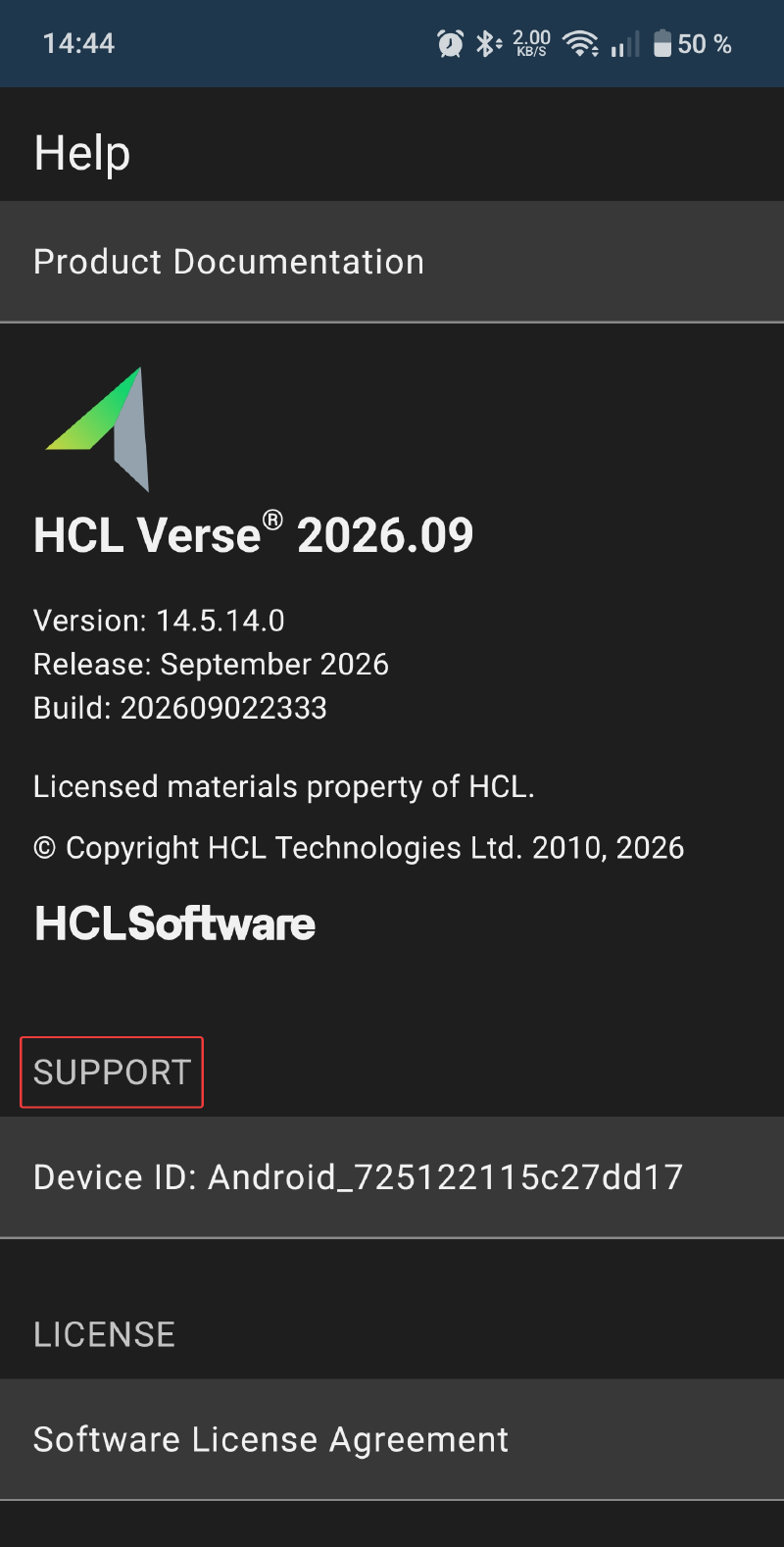
- You should see the word “Logging” briefly appear in a toast notification near the bottom of the screen.
- Proceed to reproduce the issue you are investigating.
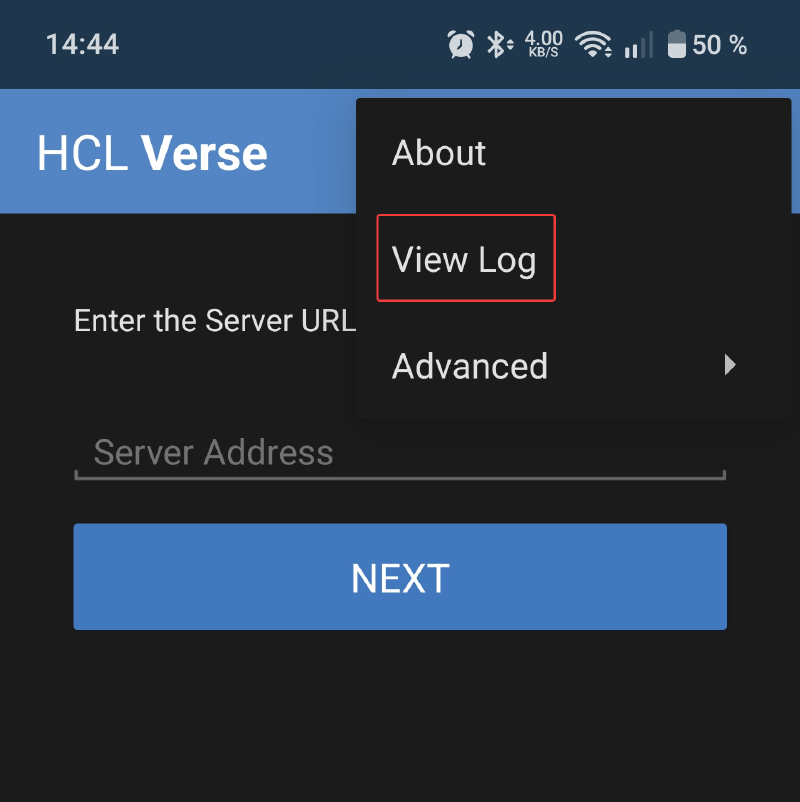
- After reproducing the issue, open the overflow menu again and select
View Log.
- With the
Log Vieweropen, tap the overflow menu once more and selectExport. You will briefly see a notification at the bottom of the screen indicating the directory where the log files were saved.
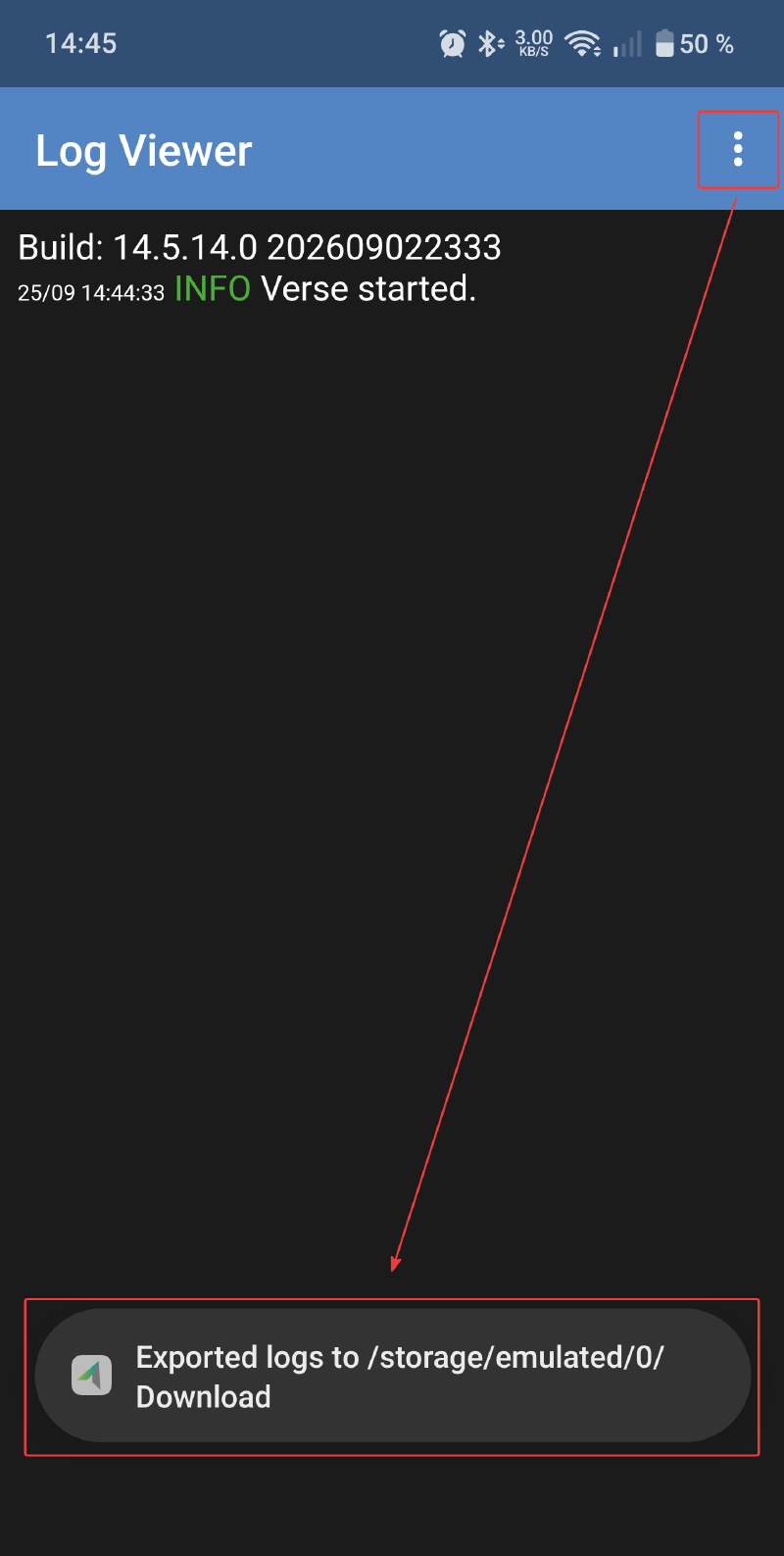
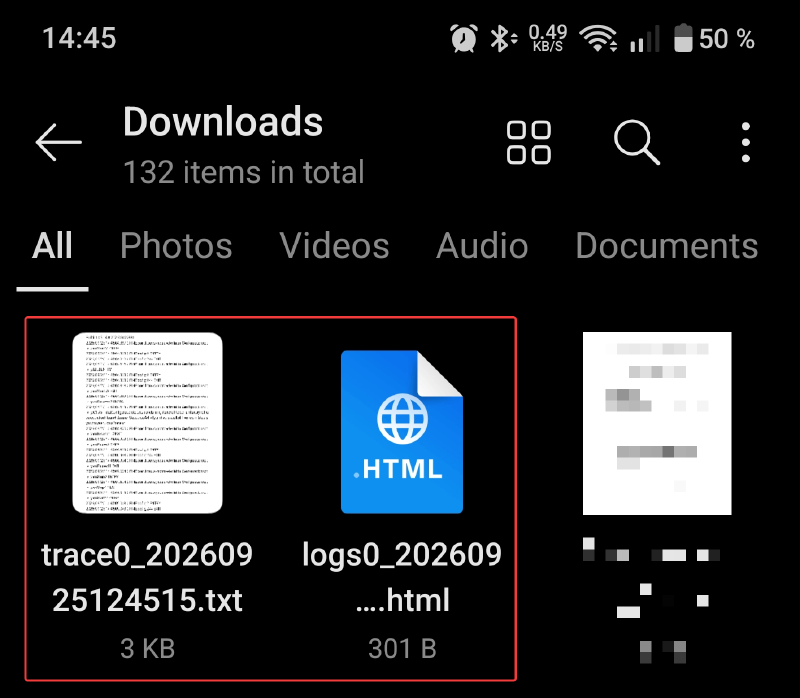
8 Navigate to that directory on your device to retrieve the logs. In my case, they were exported to the device’s Downloads folder.