
The HCL Connections ICXT Application includes powerful features that enhance user experience, such as the PDF-Export. This allows users to export various HCL Connections content as PDFs using a selected template.
By default, the application ships with a single PDF template intended for English-speaking users. However, you can create additional, localized PDF templates to make the feature more valuable for your global user base.
The official PDF templating documentation can be found here:
ICXT - PDF Export templating documentation
The documentation provides a meticulously extensive guide on how to create new templates. Although the procedure appears straightforward, specific modifications require dabbling in JavaScript. Important: Ensure your code is written in the ES5 JS specification, as this is a strict requirement posed by the wkhtmltopdf rendering engine.
The Challenge: Localizing Dynamic Content #
Since most customers require content produced in their local language, I will show you how to modify the main.js file of the PDF Template to leverage JavaScript for localization.
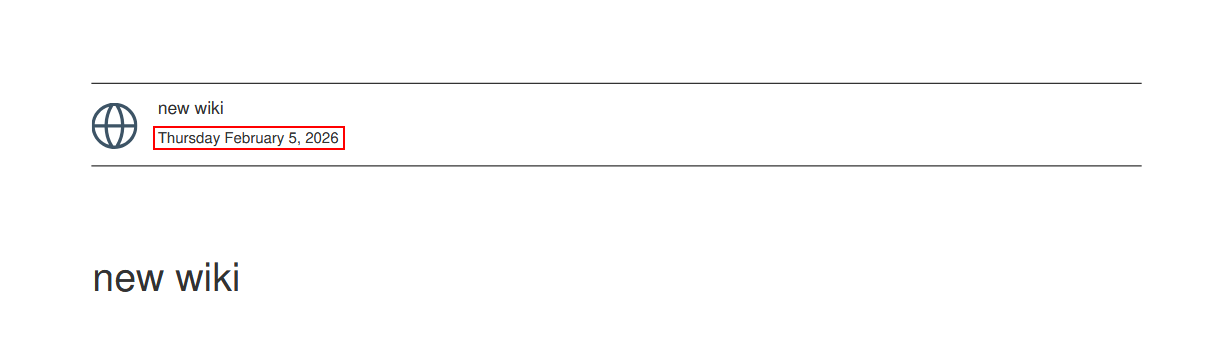
For this example, let’s say you want to change the date formatting in the PDF header from the default format to a DD.MM.YYYY format:
The Solution #
First, download the sample template listed in the official documentation. We will be modifying three specific files:
main.js- Contains functions that dynamically manipulate content.template.properties- Contains key-value mappings in Java Properties format.header.html- Defines the visual structure of the header.
Step 1: Modify main.js
#
We will expand the getPdfInfo() function. Add the following code snippet below line 41. This logic calculates the date and injects it into a specific HTML element.
// --- NEW: Date Logic (DD-MM-YYYY) ---
        var today = new Date();
        var dd = today.getDate();
        var mm = today.getMonth() + 1; // January is 0!
        var yyyy = today.getFullYear();

        // Add leading zeros if day/month is less than 10
        if (dd < 10) {
            dd = '0' + dd;
        }
        if (mm < 10) {
            mm = '0' + mm;
        }

        var todayFormatted = dd + '.' + mm + '.' + yyyy;

        // Store in pdfInfo object (optional, for reference)
        pdfInfo.date = todayFormatted;

        // Update the DOM element
        // You must add <span id="pdf_date"></span> to your HTML template
        var dateElem = document.getElementById('pdf_date');
        if (dateElem) {
            dateElem.textContent = todayFormatted;
        }
Step 2: Modify template.properties
#
Next, we modify the properties file. We need to add a key-value pair that defines the HTML span element we targeted in our JavaScript.
#Expanded - Date
pdf.custom.creationtime=<span id\="pdf_date"></span>
Step 3: Modify header.html
#
Finally, we update the HTML header to include the directive we just defined in the properties file.
<div class="header">
    <div class="app_icon {content.type}"></div>
    <div class="header_content">
        <h5 class="header_title">{content.title}</h5>
        <p class="header_creation_time">{pdf.custom.creationtime}</p>
    </div>
</div>
The Result #
After saving these changes, follow the official ICXT documentation to “enable” your new template. When you export a document now, the header will display the date in your custom “DD.MM.YYYY” format.

Conclusions & Next Steps #
The possibilites do not end here. You can extend main.js to dynamically translate standard terms like “Table of Contents” or manipulate other content elements.
While having the ability to extend templates via custom JavaScript offers infinite flexibility, it can be time-consuming for Administrators who are less versed in coding.
It would be more efficient if standard keys like “Table of Contents,” and “Tags”, were simply exposed in the template.properties file by default.
If you agree that configuration is better than coding, please vote for this idea in the HCL Connections Ideas Portal: IDEACNCTNS-I-2565 - ICXT - PDF Export - Expose Static UI Labels in template.properties for Localization
If you need assistance with complex template customizations, feel free to contact HCLSoftware Services—we are happy to help!